Important!
Fotomoto only works with TTG Highslide Gallery Pro 2.0 and higher.
For the latest TTG updates and support, go to TTG's website
-
Change your Site Settings
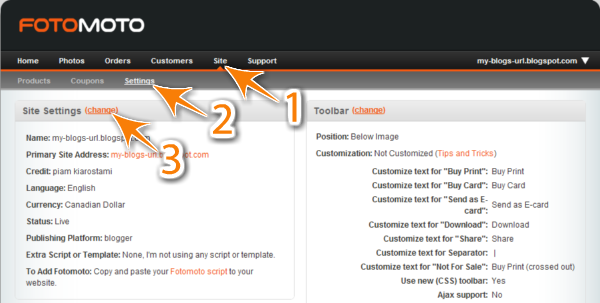
In your Fotomoto account navigate to Site (1) > Settings (2) and click the Change (3) link.
-
Change your Script/Template
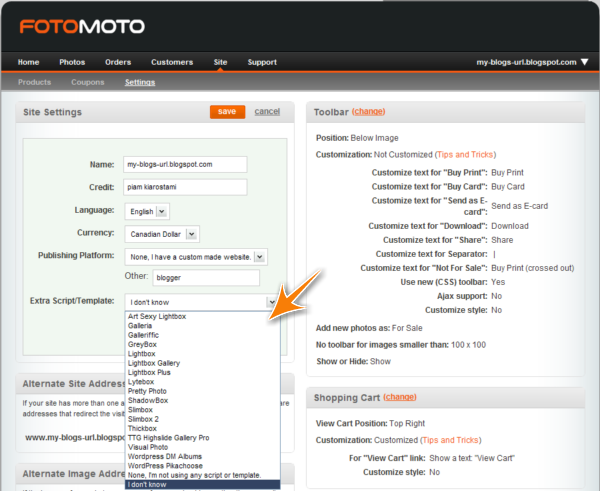
From the Extra Script/Template drop down menu, select TTG Gighslide Gallery Pro from the list, and then click the Save button.
-
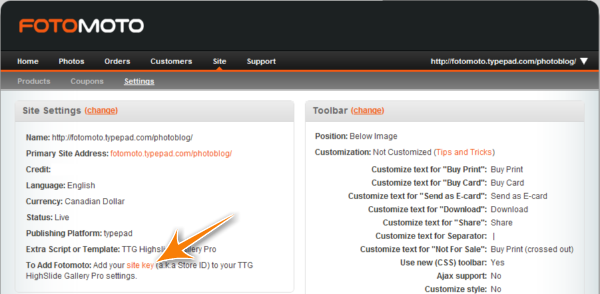
Make sure you have your Fotomoto site key, which can be found under Site>Settings in your Fotomoto account.
-
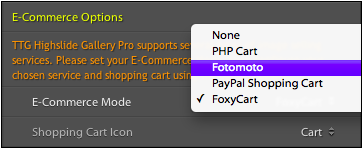
Select Fotomoto as your E-Commerce Option
Select Appearance from the control pane, then select Fotomoto from the E-Commerce Mode drop-list.
-
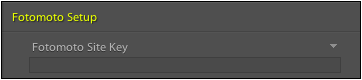
Enter Site Key
Now just paste your site key into the Fotomoto options field.
-
Success!
Fotomoto should now work with TTG Highslide Gallery Pro.